Step-by-Step Face Cam Recording Tutorial
Want to record your iPhone screen with your face showing in a picture-in-picture overlay? This beginner-friendly tutorial walks you through the entire process using DemoScope, from downloading the app to saving your first recording.
Adding a face cam to your screen recordings makes them more personal and engaging. Whether you're creating tutorials, product demos, or reaction content, viewers connect better when they can see you explaining things alongside your screen.
How to Record with Face Cam (Step-by-Step)
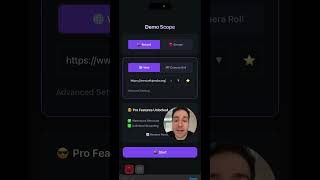
- Download DemoScope - Get DemoScope free from the App Store and open it on your iPhone.
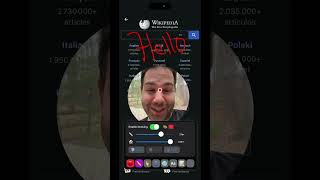
- Enable the Face Cam - Tap the camera icon to activate the picture-in-picture overlay. Grant camera permissions when iOS prompts you.
- Position Your Face Cam - Drag the face cam window anywhere on screen. The corner positions work best for most content.
- Resize and Shape - Pinch to make the face cam larger or smaller. Tap the face cam to cycle through shapes: circle, square, or rectangle.
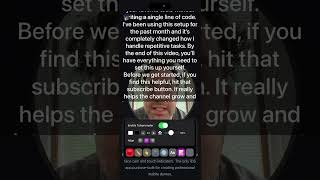
- Enable Touch Indicators (Optional) - Turn on touch indicators so viewers can see where you're tapping during the recording.
- Start Recording - Tap the red record button. A 3-2-1 countdown gives you time to prepare before recording begins.
- Stop and Save - When finished, tap stop. Your recording automatically saves to your camera roll with the face cam overlay baked in.
Tips for Better Face Cam Recordings
- Good lighting - Face a window or light source for clear, well-lit face cam footage
- Stable position - Hold your phone steady or use a stand for smooth recordings
- Circle shape - The circle shape is most popular for tutorials and looks professional
- Corner placement - Bottom-right or bottom-left corners avoid blocking important UI elements
- Test first - Do a short test recording to check your face cam position and audio levels
Why Add a Face Cam?
Research shows that videos with face cam overlays get higher engagement and watch time. Viewers feel more connected to content creators they can see. For tutorials, your facial expressions help communicate enthusiasm and important points. For product demos, showing your face builds trust with potential customers.
DemoScope makes face cam recording simple. No complicated setup, no external hardware, no video editing required. Just enable the face cam, position it where you want, and start recording. Your finished video is ready to share immediately.