

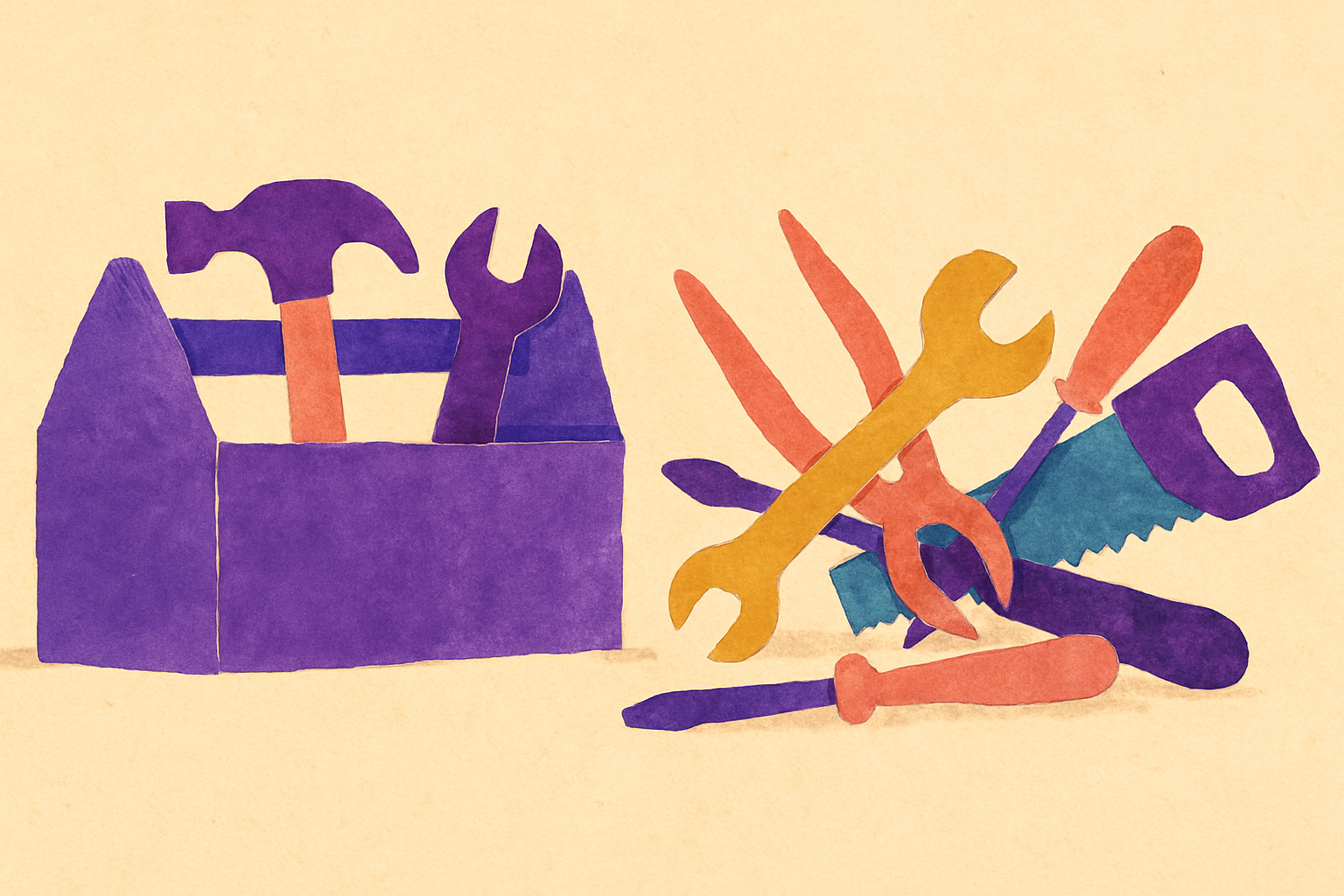
You open a tab to research recording software, and forty minutes later you have a bookmark folder with a screen recorder, a webcam overlay tool, a teleprompter app, a caption generator, a video editor, and a hosting service. None of them are installed. The demo still doesn’t exist. This is the most common way an app demo video dies: not from bad recording, but from stack assembly.
Short answer: The best tools for app demo videos in 2026 are a capture tool and (optionally) an editor, nothing more. On iPhone, DemoScope (HD Face Cam Screen Recorder on the App Store) handles capture, face cam overlay, touch indicators, and teleprompter in one iOS app, exporting MP4 to your camera roll. Pro is a $19.99 one-time purchase. Add a desktop editor only if you actually need cuts.
Why do most app demo video stacks have too many tools?
Most app demo video stacks are oversized because each tool is chosen against a hypothetical requirement rather than a real one. You add a caption generator because captions “help retention.” You add a hosting platform because analytics “would be nice.” Then you never record, because the pipeline has six handoffs and you haven’t tested any of them.
A demo video has exactly four jobs: show the app working, show who’s talking, make the interactions legible, and produce a file you can upload. Every tool in your stack should map to one of those jobs. If a tool doesn’t, it’s a tool you’re maintaining for free.
The practical test: write down the four jobs, then write your tool next to each one. If a tool has no job, delete it. If a job has three tools, you’re paying twice.
What does a minimal app demo video stack look like?
A minimal app demo video stack is one capture tool plus one export destination. On iPhone, that means a screen recorder with a built-in face cam and touch indicators, and the camera roll.
Here’s how that compares to the sprawling version:
| Job | Six-tool pipeline | Two-tool stack |
|---|---|---|
| Screen capture | iOS built-in recorder | DemoScope (iOS) |
| Face cam | Separate camera app, composited later | DemoScope face cam overlay (built in) |
| Show taps | Manual arrows added in an editor | DemoScope touch indicators (built in) |
| Script delivery | Printed notes or a second device | DemoScope teleprompter (built in) |
| Trim / cut | Desktop editor | Desktop editor (only if needed) |
| Delivery | Cloud host with a subscription | Camera roll, then upload wherever |
| Recurring cost | Multiple subscriptions | $19.99 one-time for DemoScope Pro |
The row that matters most is the face cam one. Compositing a separately recorded face video onto a separately recorded screen video is the single biggest time sink in a homemade demo pipeline, and it requires audio sync work that no one enjoys. Recording both in one pass removes an entire editing stage. That mechanic is covered in more depth in how to create an app demo video that actually gets downloads.
Where should you actually spend money on demo video tools?
Spend money on capture, not on delivery. Capture quality is unfixable after the fact. Delivery is a free upload to YouTube, the App Store, or a Product Hunt post.
Concretely, the things worth paying for:
- Watermark removal. A watermark on an App Store preview or a launch-day demo looks unfinished. DemoScope Pro removes it for a single $19.99 payment rather than a monthly fee.
- A good microphone. Not software. Wired earbuds with an inline mic beat your phone’s built-in mic in a room with any echo, and cost nothing extra if you already own them.
- An editor, only if your demo needs cuts. DemoScope does not edit video. If you need to trim a dead ten seconds, do it in a desktop editor after export.
Things not worth paying a subscription for on a demo video: hosting, analytics, transcription, and team seats, unless you already know you need them for a reason you can state out loud. The subscription-versus-one-time math is unpacked in best tools for app demo videos: 2026 developers guide to recording professional mobile demos.
How do you record a mobile demo with fewer moving parts?
Record the demo on the device the app runs on, in one take, with everything overlaid live. That eliminates simulator setup, mirroring software, and post-production compositing in a single decision.
A workable one-pass sequence on iPhone:
- Paste your script into the DemoScope teleprompter and set the scroll speed slower than feels right. The teleprompter is visible only to you and is not recorded.
- Turn on touch indicators and pick a color that contrasts with your app’s UI. Touch indicators show animated circles at your tap locations so viewers can follow which control you’re using.
- Position the face cam bubble in a corner your app’s UI doesn’t need. DemoScope’s camera bubble is draggable to any corner, resizable, and can be set to circle, square, vertical rectangle, or horizontal rectangle.
- Record. Stop. The file exports as MP4 (H.264) to your camera roll.
If your demo crosses app boundaries (a share sheet, a Safari OAuth step, a payment flow), the in-app recorder isn’t enough. DemoScope’s External PiP mode uses an iOS Broadcast Extension to put a floating face cam window on top of your whole phone, then backgrounds itself so you can navigate anywhere. In External PiP mode the available tools narrow to Camera, PiP Border, and Text on screen; touch indicators and the teleprompter are in-app recording only, because of iOS limitations on what an overlay can draw during a system broadcast.
When is a desktop tool still the right call?
A desktop tool is the right call when your demo needs real editing: multi-clip assembly, precise trims, b-roll, or captions burned in. DemoScope has no editing, no transcription, and no captions, so those tasks belong somewhere else.
But for the capture stage itself, a phone is often the better instrument for a phone app. You get real device performance, real gestures, and real notification behavior instead of a simulator’s approximation. That tradeoff is argued in detail in the best tools for app demo videos: why your iphone might beat desktop recording in 2026, and the full end-to-end process lives in app demo video: the ultimate guide to recording professional mobile demos.
A reasonable split: capture on iPhone, edit on desktop if and only if the raw take has a problem you can’t re-record away. Most of the time, a second take is faster than an edit.
What to cut from your stack this week
Open your bookmark folder. For each tool, answer one question: which of the four jobs (screen, face, clarity, file) does this do that my capture tool doesn’t already do? Anything without an answer goes. Anything with a monthly charge and no answer goes first.
Then record a throwaway demo today with whatever’s left. A ninety-second take that exists beats a perfect pipeline that doesn’t. If you’re recording on iPhone and you want the face cam, touch indicators, and teleprompter in one pass without assembling anything, DemoScope is worth a look, and the free tier lets you test the whole flow with a watermark before deciding on the $19.99 Pro unlock.
Related guides
Frequently Asked Questions
What is the best tool for making an app demo video on iPhone?
DemoScope is the strongest single-app option for iPhone app demo videos because it combines screen recording, a front-facing face cam overlay, touch indicators, and a teleprompter in one iOS app. It exports MP4 files to your camera roll, and Pro is a $19.99 one-time purchase rather than a subscription. The iOS built-in recorder is free but has no face cam and no touch indicators.
Do I need a video editor to make an app demo video?
No, not if you can record the demo in one take. A screen recorder that overlays your face cam and tap indicators live produces a finished file with no editing stage. You only need a video editor for trims, multi-clip assembly, or burned-in captions, none of which DemoScope does.
How much should app demo video tools cost?
You can make a usable app demo video for $0 with the iOS built-in recorder, or for a one-time $19.99 with DemoScope Pro, which removes the watermark and unlocks all features. Subscription tools like Loom and Vidyard bill monthly and are built primarily around desktop workflows, team features, and hosting, which most solo app demos don’t need.
Can I record other apps on my iPhone with my face on screen?
Yes. DemoScope’s External PiP mode activates a system-wide floating face cam window using an iOS Broadcast Extension, then sends DemoScope to the background so you can navigate to any app while recording. In External PiP mode the toolset is limited to Camera, PiP Border, and Text on screen; touch indicators and the teleprompter work only in DemoScope’s in-app recording mode.
Does DemoScope work on Android or Mac?
No. DemoScope is iOS only and runs on iPhone and iPad with iOS 14 or later. There is no Android version and no desktop or Mac app.